
A timer for each tab.
Set different refresh intervals for different tabs. Manage your timers in one place.
Set a refresh interval for each tab. Pause or change it whenever you need to.
Available for Chrome & Microsoft Edge
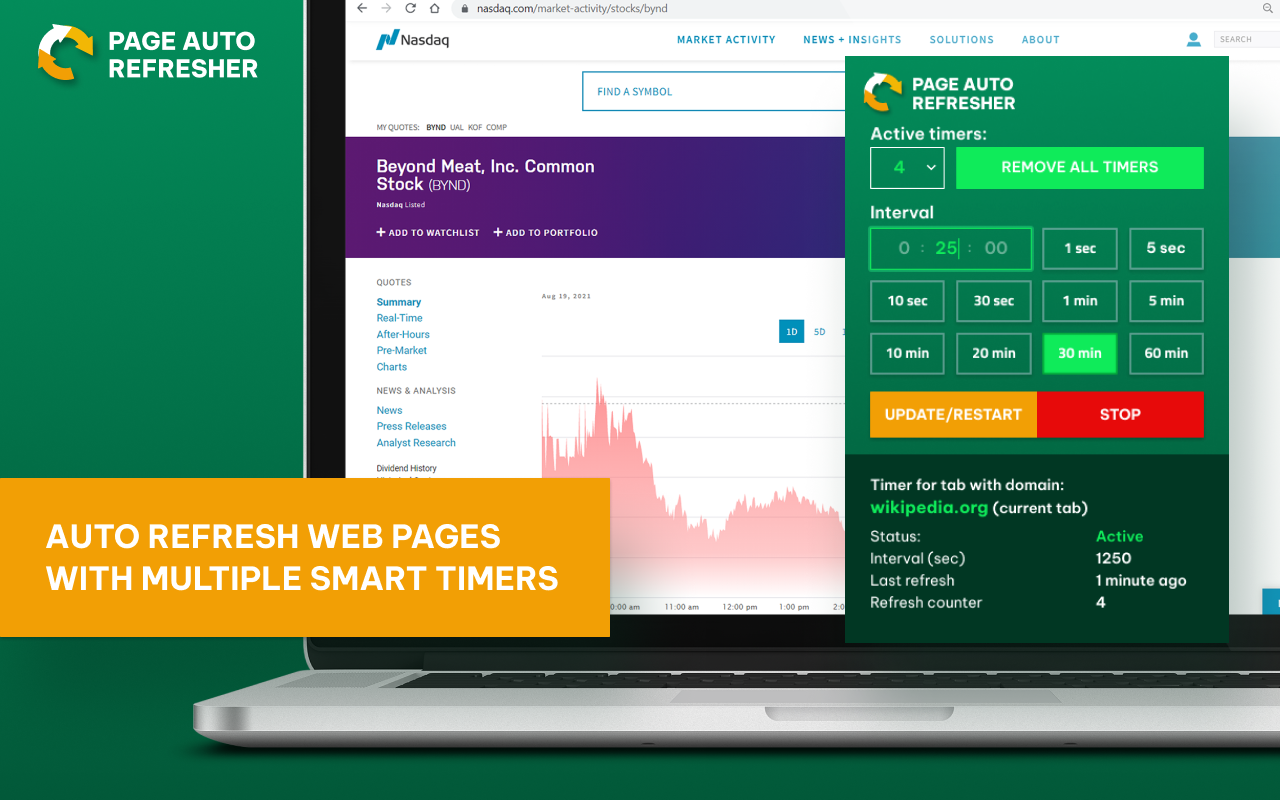
Separate timers. Simple controls.
Set different refresh intervals for different tabs. Manage your timers in one place.
Pick a ready-made interval or enter the timing that works for your page.
Pause a timer, change its settings or clear all timers from the extension.
Choose the tab and let the timer handle the refreshes.
Timers clear when your browser restarts.
Open the extension and set them again when you return.
Install from the Chrome Web Store or Microsoft Edge Add-ons.
Find Page Auto Refresh in your toolbar or browser extensions menu.
Pick a preset or enter a custom interval. Add separate timers for other tabs.
Install Page Auto Refresh from its store listing.

Chrome Web Store
Add to Chrome
Microsoft Edge Add-ons
Add to EdgeStore figures from 10 September 2026. They may have changed; each store reports its own audience.
Before installing, review the listing and the permissions shown by your browser.
Chrome Web Store ↗ · Microsoft Edge Add-ons ↗
Install the extension, open its popup and choose a preset or custom interval for your tab.
Yes. Select another tab in the popup and set a separate refresh interval.
Use the stop control for a timer, or “Remove all timers” to clear every timer.
Timers are cleared. Open the extension and set them again when needed.